

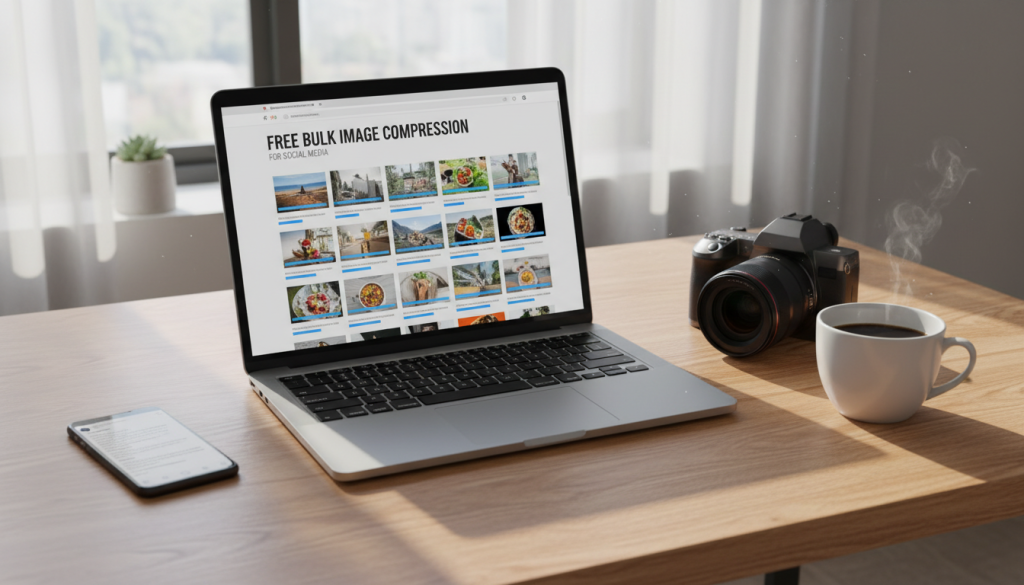
Social media managers live in a perpetual cycle of content creation, scheduling, and performance analysis. Among these tasks, one activity consumes disproportionate time and frustration: preparing image assets. A single campaign might require dozens of photographs, graphics, and infographics sized for Instagram, Facebook, LinkedIn, Twitter, and TikTok. Each visual must be optimized—not just for platform dimensions but for file weight. Uploading heavy JPEGs, PNGs, or WebP files leads to sluggish post loading, reduced engagement, and even rejection by certain social networks’ file size limits.
The conventional approach involves opening individual images in desktop software, manually adjusting quality settings, and saving each file separately. This method scales poorly. For agencies handling multiple clients, the cumulative hours spent on image optimization could fund an entire additional employee. Fortunately, a superior alternative exists: browser-based batch compression that processes numerous images simultaneously, costs nothing, and imposes no registration barriers. This article dissects why batch processing matters and how a specific tool transforms this workflow.
The Hidden Inefficiency of Single-Image Compression
Most casual users compress one image at a time. They locate an online utility, upload a single JPEG, download the result, and repeat. For a handful of photos, this is tolerable. For a social media manager preparing a week’s worth of content—often fifty to one hundred images—the repetition becomes unbearable. Each upload requires navigating file dialogs, waiting for processing, and manually organizing downloads. The cognitive load of context switching between tabs and folders further erodes productivity.
Moreover, single-image tools frequently lack batch queues. You cannot walk away while ten images process; you must babysit each iteration. This fragmented workflow contradicts the principles of efficient content production. Batch compression, by contrast, allows you to select an entire folder of assets, initiate a single operation, and retrieve all optimized versions in one consolidated package. The time savings compound exponentially as volume increases.
Why Social Media Platforms Demand Lightweight Images
Every social network imposes hidden penalties on oversized uploads. Instagram, for instance, accepts images up to 8MB for feed posts and 30MB for Stories, but larger files take longer to transmit from your device to their servers. During upload, the platform may display a progress spinner for several seconds—an eternity when you are scheduling dozens of posts. Worse, inconsistent network conditions can cause timeouts, forcing re-uploads.
Facebook’s compression algorithms re-encode uploaded images regardless of original size, but starting with a lighter file reduces the likelihood of visible artifacts after their second-round processing. LinkedIn recommends images under 5MB for company pages; exceeding this threshold triggers automatic downscaling that often produces blurry results. Twitter’s media pipeline similarly favors files under 5MB for standard posts and 15MB for high-resolution content.
WebP, the modern format championed by Google, offers superior density but requires careful handling. Compressing multiple WebP images simultaneously ensures consistency across your campaign’s visual assets—no random variations in quality or file weight.
Batch Processing: The Marketer’s Force Multiplier
Adopting a batch compression workflow unlocks several strategic advantages. First, consistency across a campaign: when you process all images with identical settings, they exhibit uniform visual characteristics. No single photo appears subtly sharper or more compressed than its neighbors. Second, predictable file sizes: batch tools often display aggregate statistics, allowing you to estimate total upload time and bandwidth consumption. Third, reduced mental overhead: completing compression in one dedicated session frees cognitive resources for higher-value activities like caption writing and community engagement.
Furthermore, batch processing facilitates version control. You can maintain original, uncompressed masters in a “source” folder while generating compressed copies in a “web” folder. If you later need to regenerate assets for a different platform, you revisit the sources rather than hunting through scattered outputs.
What to Look for in a Batch Compression Tool
Not all batch utilities are equal. An effective solution for social media professionals must satisfy several criteria:
- Zero signup requirement: Registration forms waste time and compromise privacy.
- No watermarks: Any branding added to compressed images renders them unusable for client work.
- Unlimited batch size: The tool should handle ten, fifty, or one hundred images without arbitrary caps.
- Format versatility: Support for JPEG, PNG, and WebP is non-negotiable.
- Preserved folder structure or clear naming: Downloads should be easily distinguishable.
- Instantaneous processing: No queuing systems or artificial delays.
Many purported “free” batch compressors fail on multiple counts. Some limit batch sizes to five images before demanding payment. Others inject watermarks after a free trial period expires. A handful require email signups that lead to newsletter spam. Finding a tool that genuinely delivers unlimited, unmarked, registration-free batch compression requires scrutiny.
The Pixlop Browser Tool Solution
After rigorous evaluation, one platform stands out for social media batch compression: pixlop.com. This browser-based utility allows you to drag and drop dozens of JPEG, PNG, or WebP files simultaneously. Within moments, the tool processes every image in parallel, leveraging local browser capabilities to avoid upload delays or server bottlenecks. You then download all compressed files as a single ZIP archive, preserving original filenames.
The interface is deliberately minimalist. No pop-ups implore you to create an account. No watermarks deface your visuals. No metered usage counts how many batches you have processed. The tool simply works, repeatedly, for any volume of images. For social media managers juggling multiple clients and campaigns, this reliability is transformative.
Step-by-Step Workflow for Batch Compression
Implementing this tool into your daily routine requires minimal adaptation. Follow these steps:
- Organize source images into a dedicated folder on your local drive. Use descriptive filenames (e.g.,
campaignA_product_01.jpg) to maintain clarity after compression. - Open your browser and navigate to the aforementioned service. Observe the absence of any signup interface or subscription prompt.
- Select all images you wish to compress. Use Ctrl+A (Windows) or Cmd+A (Mac) to batch-select within the file picker.
- Initiate upload by dragging the selection or clicking the upload zone. The tool accepts mixed formats—JPEGs alongside PNGs and WebPs.
- Wait for processing. Depending on your machine’s performance and the number of images, this typically takes five to thirty seconds. During this phase, no data leaves your browser; all operations occur locally.
- Preview aggregate results. The interface displays original total size versus compressed total size, along with percentage savings.
- Download the ZIP archive. Extract the contents to your desired location. Replace old assets with these optimized versions.
The entire procedure consumes under two minutes for a batch of fifty images. Compare this to single-image workflows requiring fifty separate uploads, and the efficiency gain becomes stark.
Real-World Use Cases for Social Media Teams
Consider a marketing agency preparing a product launch. The creative team delivers sixty high-resolution photographs averaging 4MB each—a total of 240MB. Uploading these raw files to scheduling tools like Buffer, Hootsuite, or Later would cause excessive delays and potential timeouts. By running the entire set through a batch compressor, the agency reduces each image to approximately 300KB, yielding a total of 18MB. The compression ratio exceeds ninety percent, with no discernible quality loss on social media feeds.
Similarly, a content creator producing daily Instagram carousels can batch compress ten images at once, maintaining consistent visual fidelity across the swipeable deck. The same tool handles PNG screenshots for Twitter threads and WebP exports for website embeds.
Addressing Privacy and Security Concerns
Because pixlop.com processes images entirely within your browser, no file ever travels to external servers. This architecture is particularly valuable for agencies handling non-disclosure agreements or unreleased product imagery. You can compress confidential assets—embargoed campaign visuals, internal strategy graphics, client prototypes—without worrying about data breaches or unauthorized access.
For maximum privacy, you can even use the tool in an offline state. Load the page once while connected, then disconnect your network. All subsequent compression operations function identically, as no remote resources are required. This offline capability also benefits marketers working in environments with unreliable internet, such as conference venues, airplanes, or remote field locations.
Avoiding Common Pitfalls in Batch Compression
While batch tools simplify workflows, certain mistakes undermine their benefits. Never delete your original, uncompressed images. Store them in an archive folder labeled “masters.” These originals remain necessary if you later need different dimensions, formats, or quality levels. Additionally, verify that your batch compressor preserves color profiles. Some aggressive tools strip ICC profiles, causing color shifts between your design software and final web output.
Another pitfall is over-compression. While reducing file size aggressively saves bandwidth, setting quality too low introduces visible artifacts—blockiness in JPEGs, banding in gradients, or edge blurring in PNGs. Test a small representative sample before processing your entire batch. Adjust settings until you find the sweet spot where file size decreases substantially but image quality remains acceptable for social media viewing.
Integrating Batch Compression Into Team SOPs
For marketing teams, standard operating procedures should mandate batch compression for all outgoing visual assets. Include the tool’s URL in your internal knowledge base. Train new hires on the drag-and-drop workflow. Establish quality benchmarks: for JPEGs, target 70-85% quality; for PNGs, use palette reduction where appropriate; for WebP, leverage lossy presets.
By institutionalizing batch compression, you eliminate variance across team members. Every asset leaving your organization meets the same performance and quality standards. This consistency reinforces your brand’s professional reputation.
Final Thoughts
Social media marketing is fundamentally a volume game. The more content you produce efficiently, the greater your reach and engagement. Image compression should never be the bottleneck in that equation. Batch processing tools remove the friction, enabling you to optimize dozens of files in the time previously required for one.
The ideal solution costs nothing, demands no personal information, leaves no watermarks, and works offline within your browser. It handles JPEG, PNG, and WebP formats seamlessly. It respects your privacy by never transmitting files to remote servers. And it scales from a single image to hundreds without complaint.
Adopt batch compression today. Reclaim the hours lost to repetitive file handling. Your social media calendar—and your sanity—will thank you.